

Server Deploy Wiki
Turn a fresh Ubuntu server into a hardened one, from a Windows app over SSH or from a menu on the server itself. This page covers every setting, every hardening technique and every check, plus how it all works under the hood.
Beta: run it on a fresh server first and keep your provider's web console handy. The tool has lockout protection built in, but changing SSH, firewall and accounts on a live server always deserves a way back in.
Administrators
How it works
There are two parts, and you can use either on its own:
| Part | What it is | Use it when |
|---|---|---|
| dcx-setup.sh | The installer that runs on the server: a single bash script with full-screen menus (whiptail), or unattended from an answers file. Every hardening technique is defined and applied here. | You're already on the server, or you script your builds. |
| DarkCipher Server Deploy | A Windows app (WPF) that walks you through every setting, checks it for mistakes, uploads the script with your answers over SSH and runs it in tmux, streaming progress back. | You'd rather click through a guided setup from your PC and watch it happen. |
Both produce the same result, because the Windows app embeds the exact script it deploys. The repository contains no personal data: users, keys, IPs and everything else come from you when you run it.
Requirements
| Component | Requirement |
|---|---|
| Server | Ubuntu 24.04 LTS or newer with systemd, internet access and at least 3 GB free disk. Any provider: VPS, cloud VM, bare metal or a local VM. |
| Server access | The login your provider gave you (root, ubuntu, linuxuser, …) with an SSH key, or a password you'll use once to install a key. |
| Windows app | 64-bit Windows 10 or 11. Uses the built-in Windows OpenSSH client (ssh.exe), which is installed by default on current Windows. .NET is bundled; nothing else to install. |
| Keys | At least one SSH public key for every user who logs in (password logins are switched off by default). The app can create an ed25519 key for you. |
Installing the app
Download from the Software page:
- MSI installer: installs to
C:\Program Files\DarkCipher Systems\Server Deploywith a Start-menu shortcut (desktop shortcut optional). Newer versions upgrade in place; uninstall from Settings › Apps, which also offers to delete your saved profiles. - Portable zip: unzip anywhere and run
DcxDeploy.exe. No install, no admin rights. - Server script only: just
dcx-setup.sh, for running on the server without Windows.
# Silent MSI install / uninstall (elevated)
msiexec /i DarkCipher-Server-Deploy-1.0.2-x64.msi /qn
msiexec /x DarkCipher-Server-Deploy-1.0.2-x64.msi /qn

# Check the download first (compare with the hash on the Software page)
Get-FileHash .\DarkCipher-Server-Deploy-1.0.2-x64.msi
The app isn't code-signed yet, so SmartScreen may warn you. See Signing & Smart App Control.
Tour
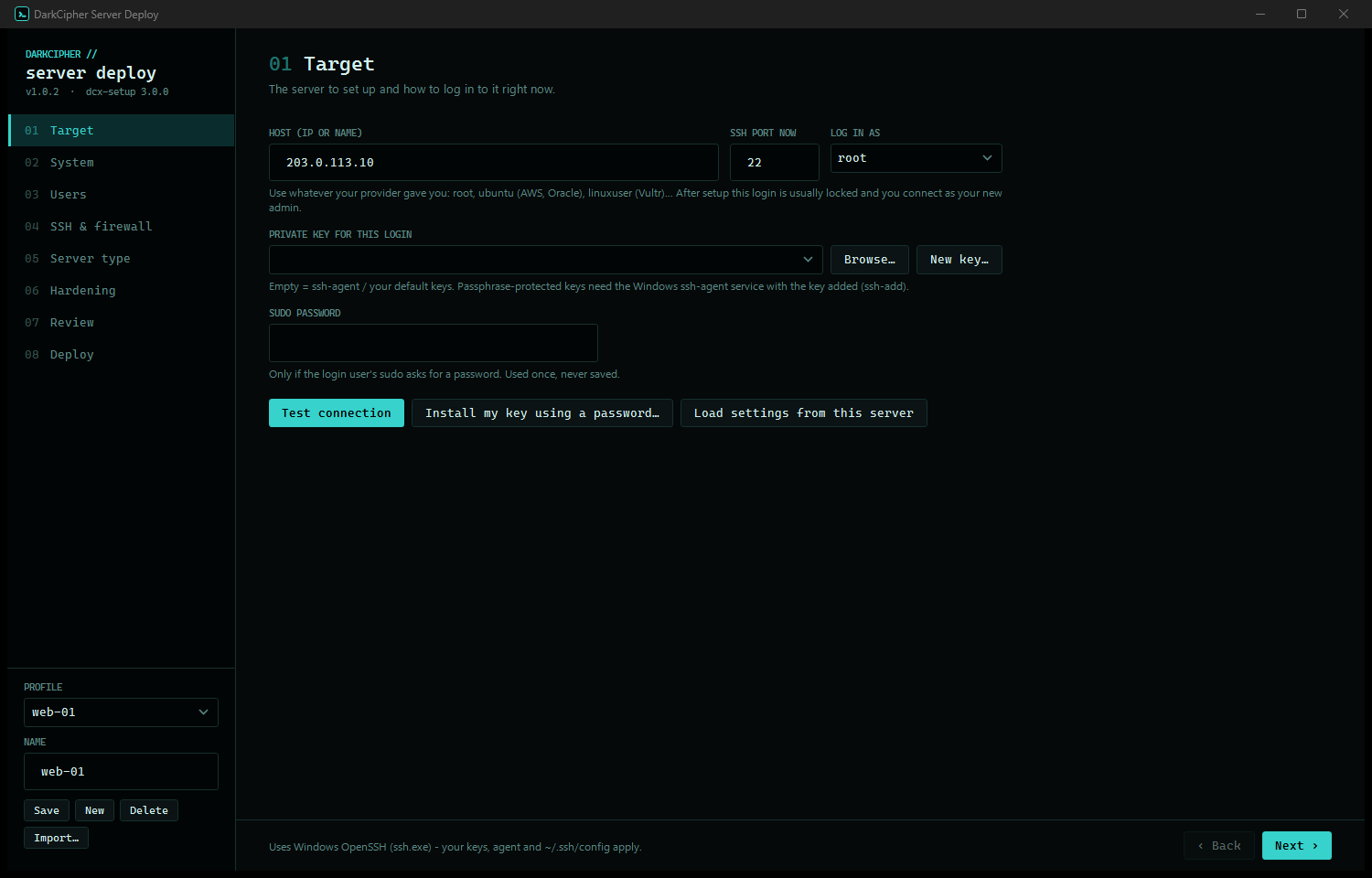
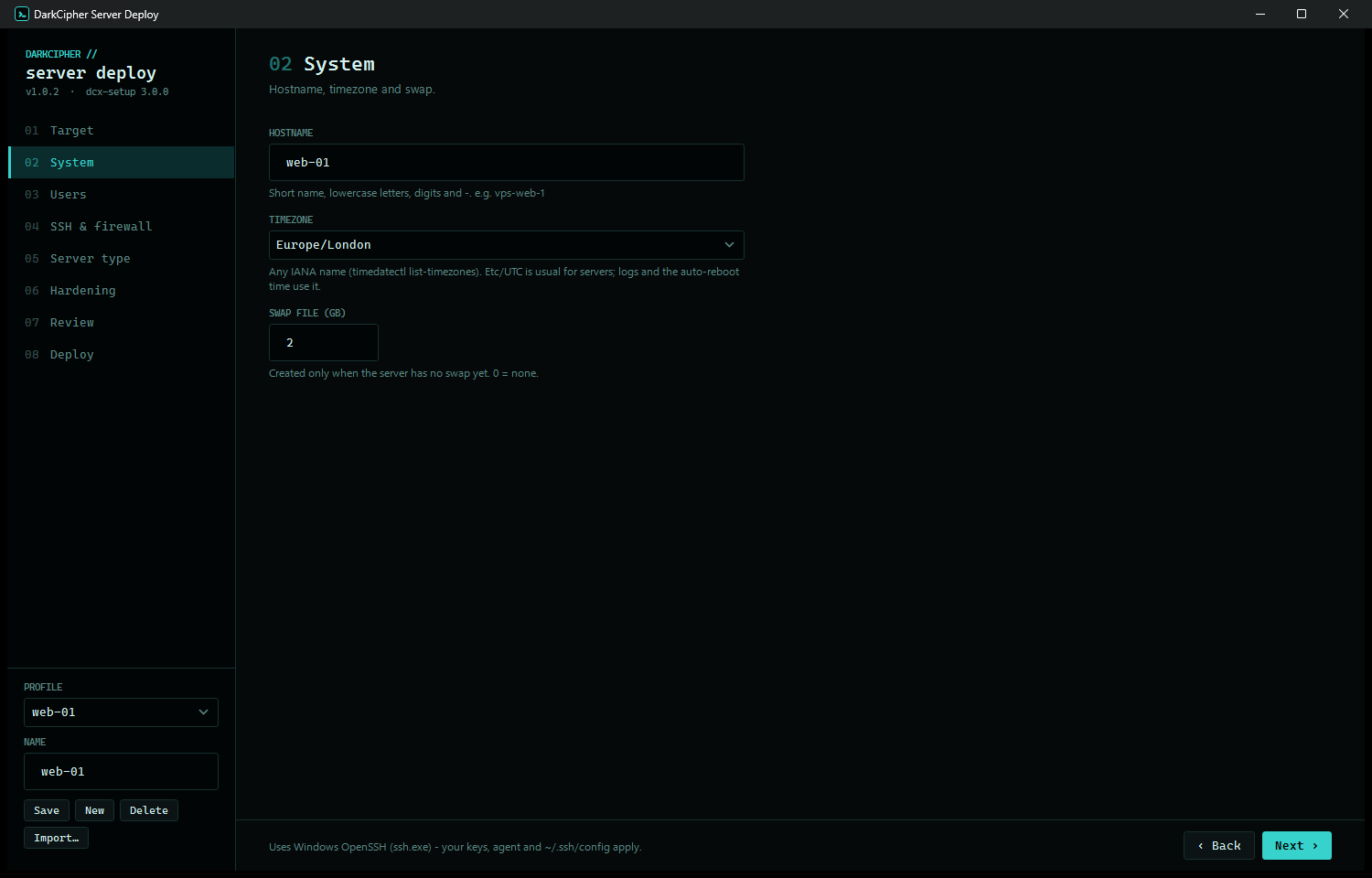
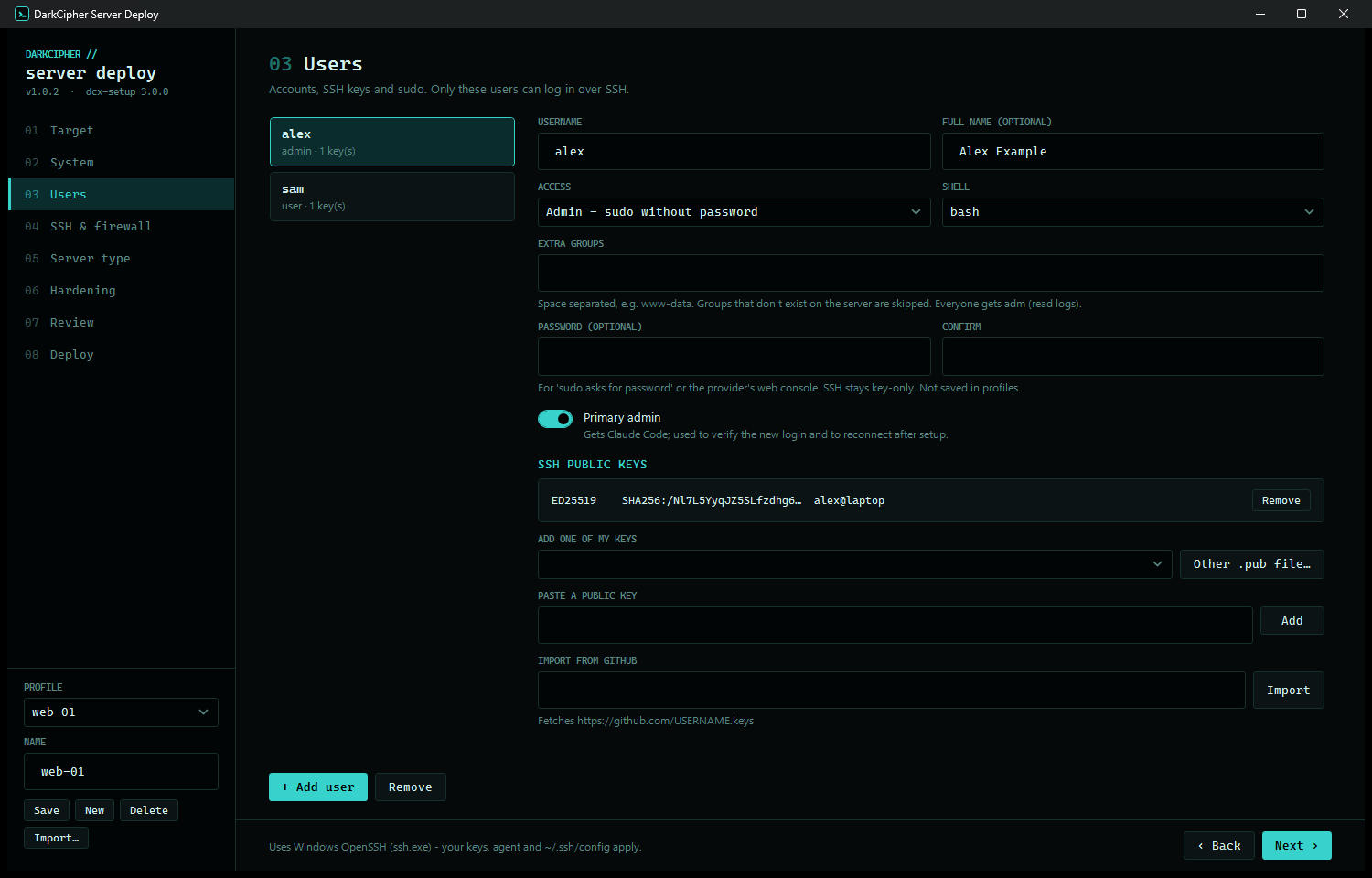
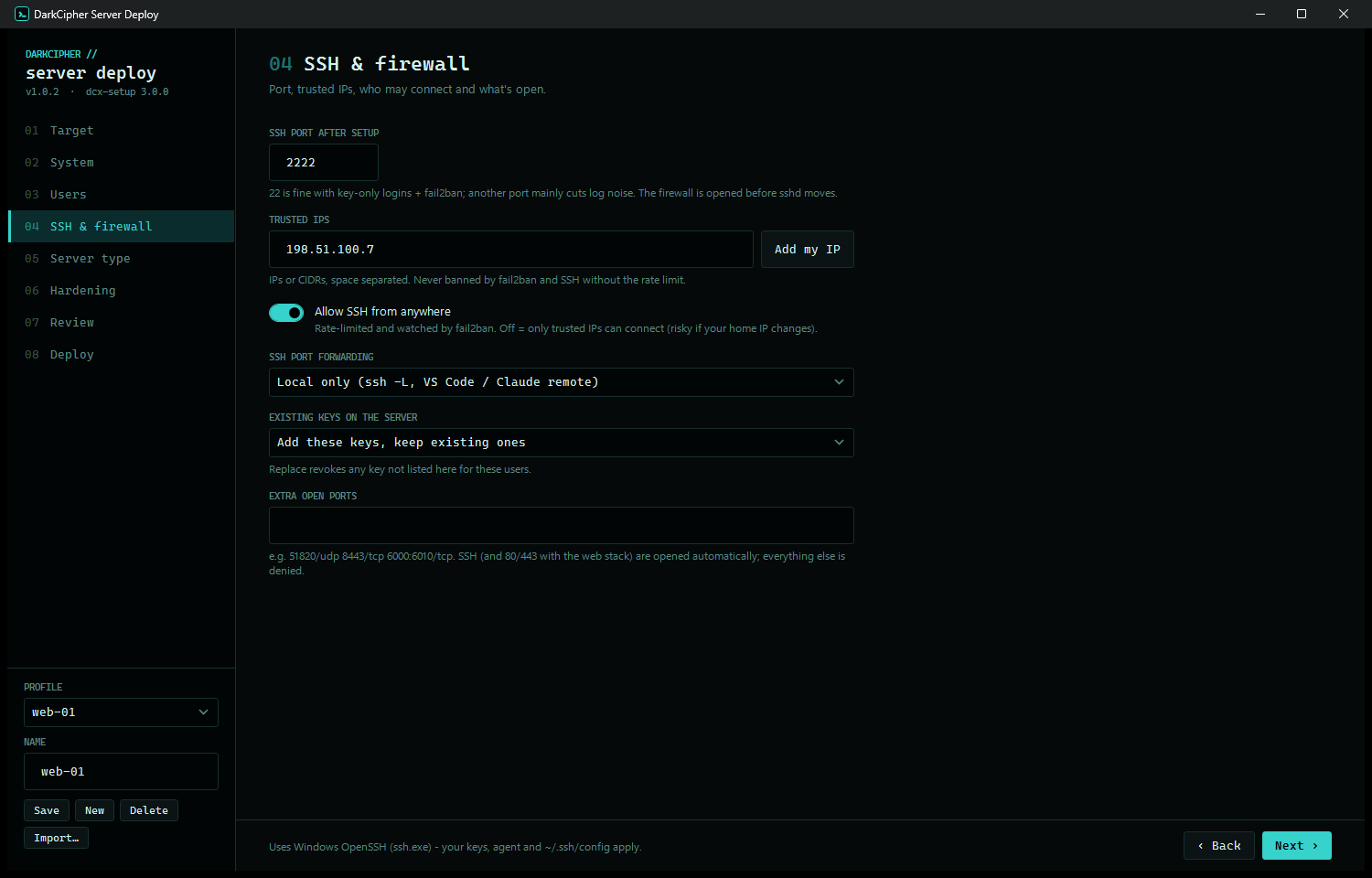
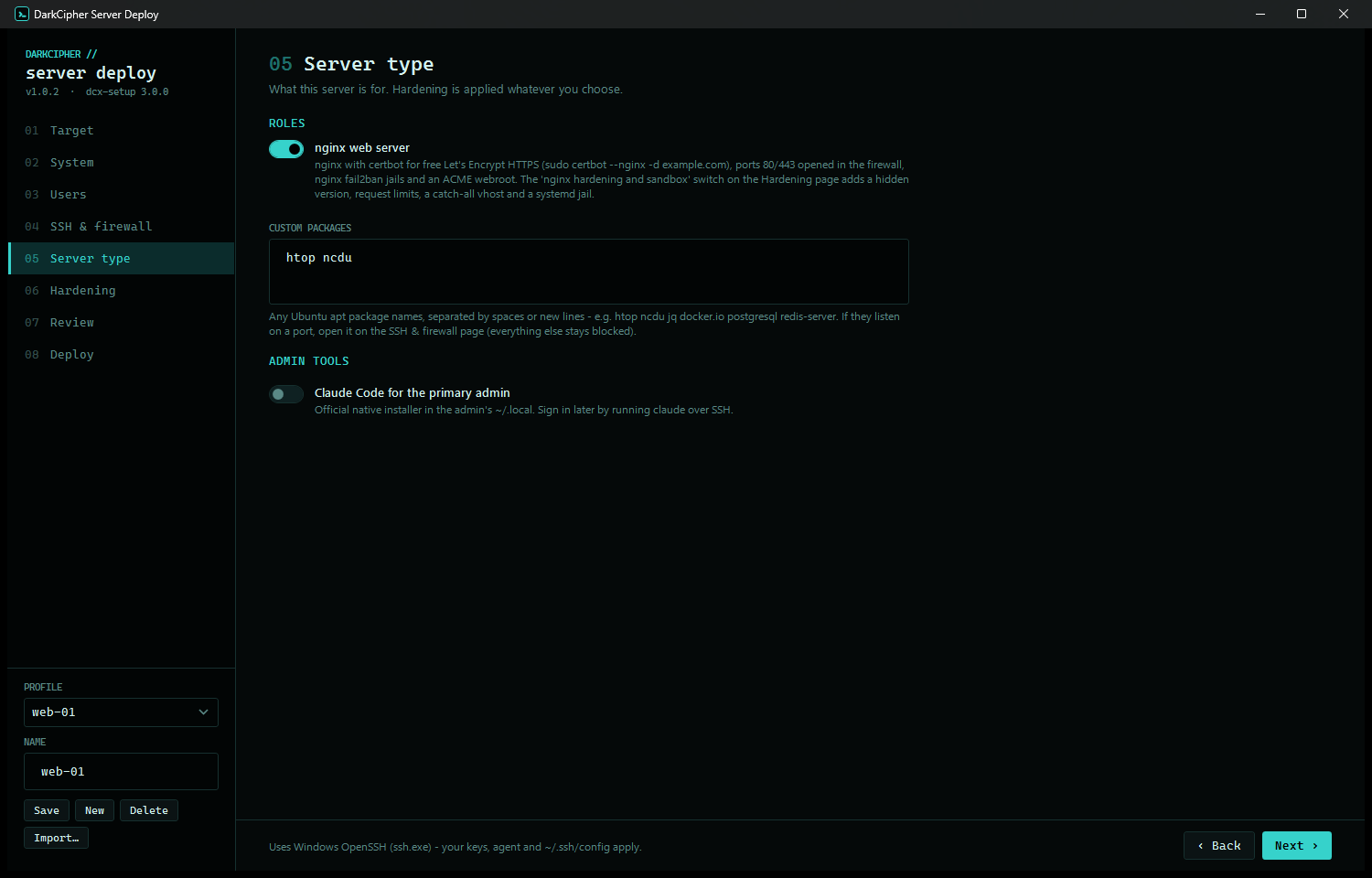
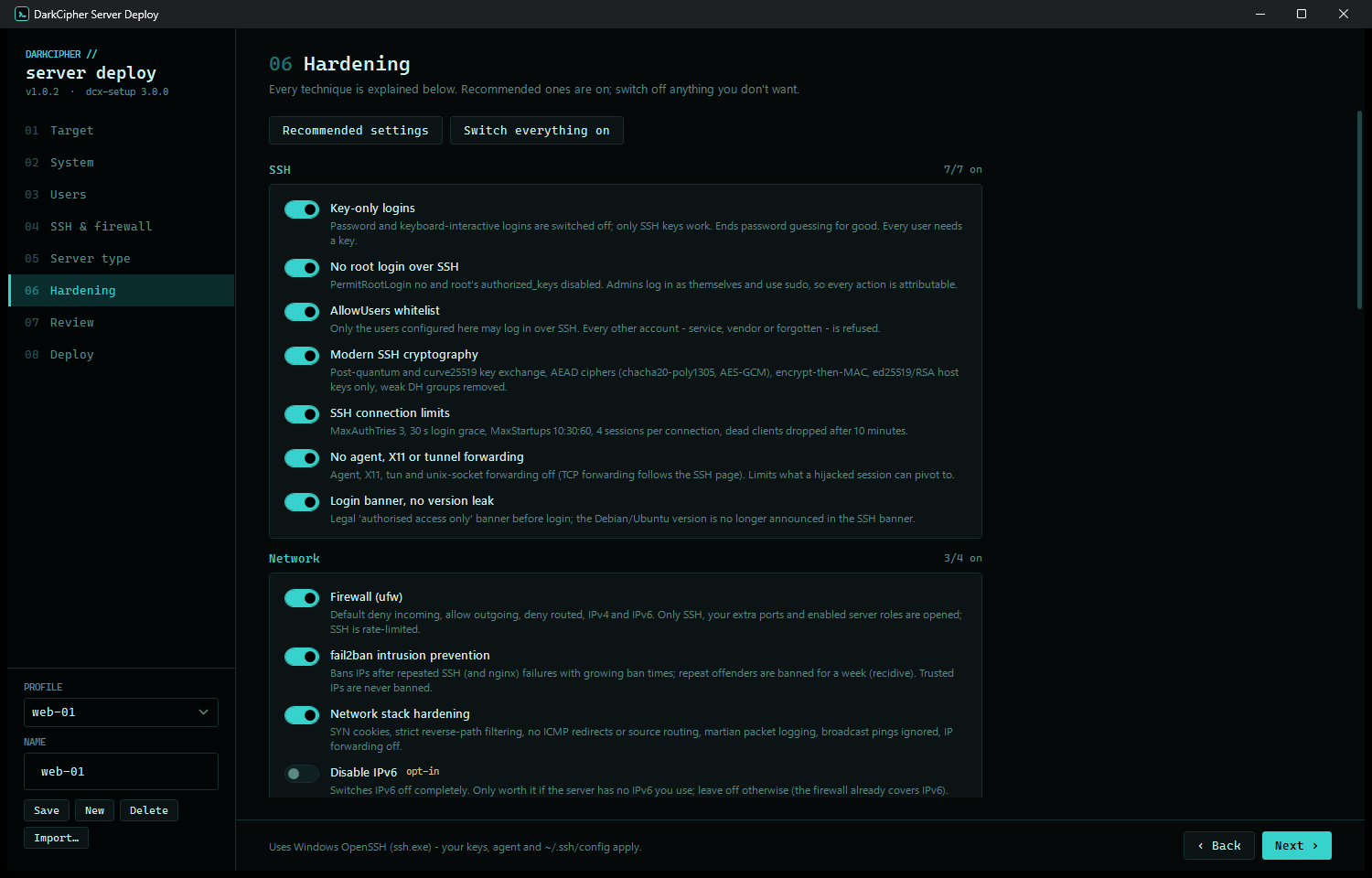
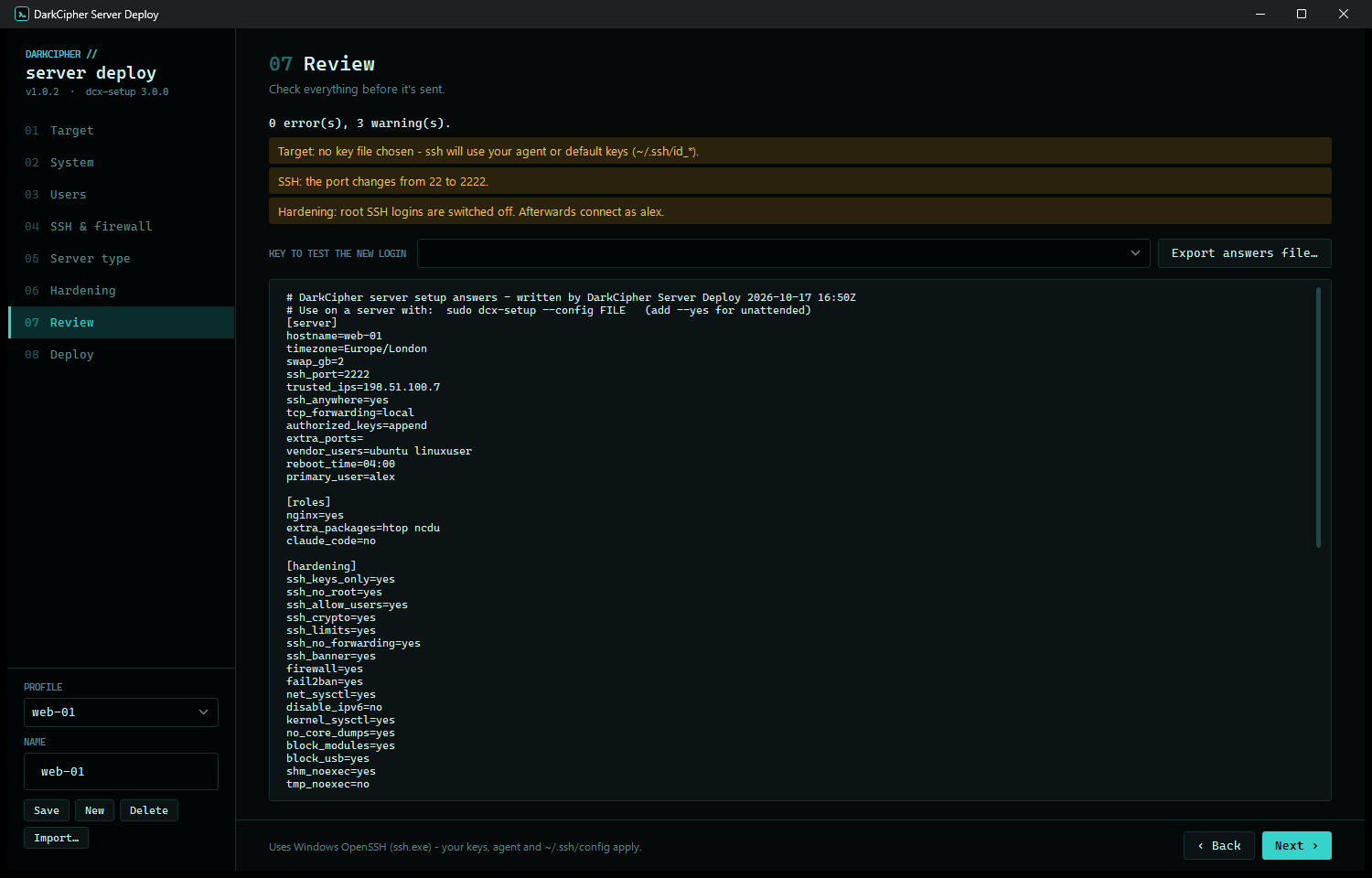
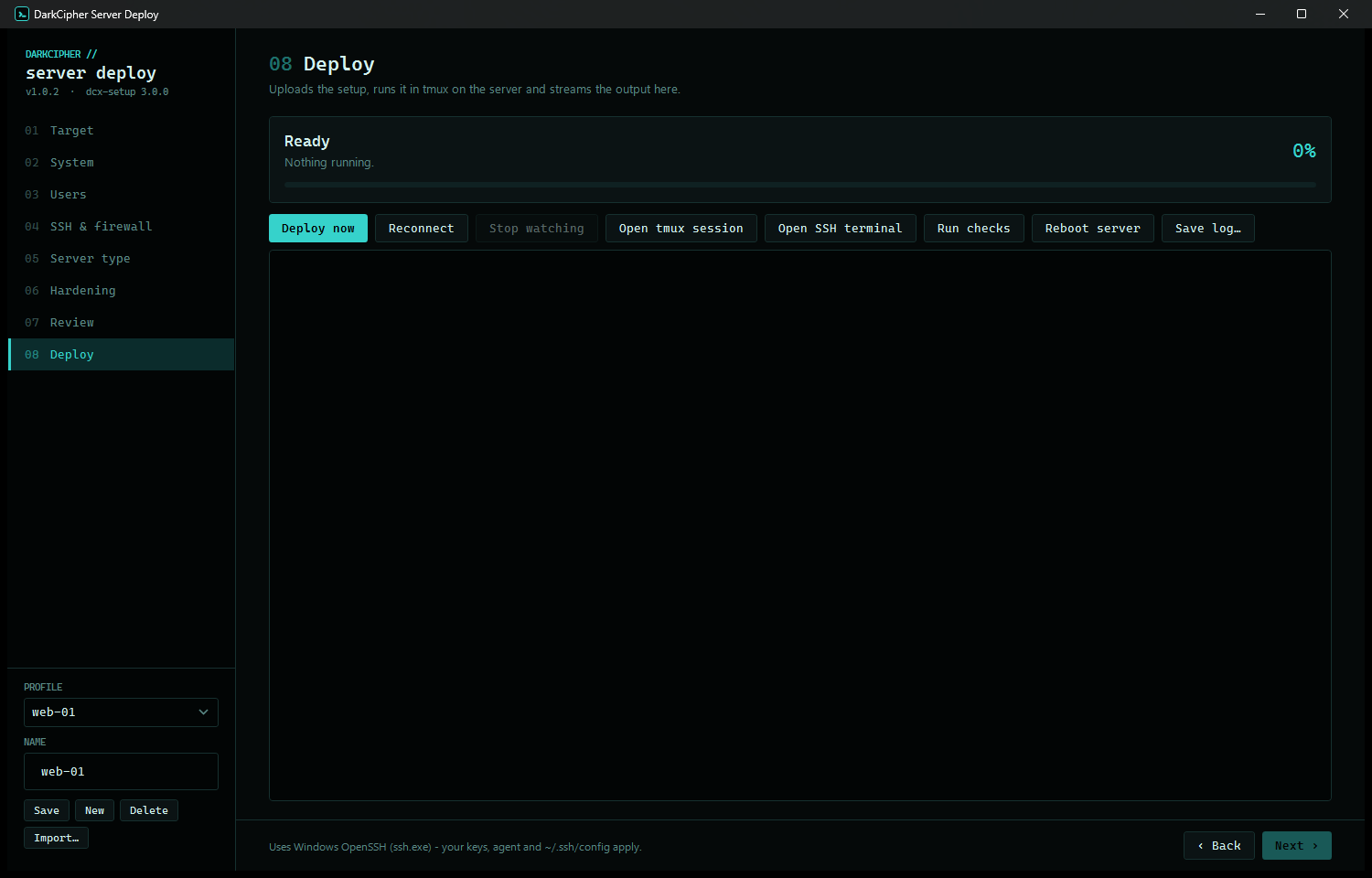
Every page of the Windows app, shown with a made-up demo server (203.0.113.10, a documentation IP range) and demo users. Click a screenshot for full size.
The eight pages
The app walks you through eight pages. You can move back and forth freely; everything is validated live and summarised on the Review page.
| Page | What you set |
|---|---|
| 1. Target | Host, port, the login your provider gave you and the key to use (pick one from ~/.ssh, browse, or create a new ed25519 key). Test connection shows the OS, whether sudo works and your IP as the server sees it. Only have a password? Install my key using a password… adds your key once, then everything uses the key. Load from server reads the answers of a previous run. |
| 2. System | Hostname, timezone, swap size (only created if the server has none), automatic reboot time for kernel updates. |
| 3. Users | Any number of users: username, full name, shell (bash, zsh, fish), extra groups, sudo access (without password, with password or none), optional password, and SSH keys pasted, imported from a .pub file, taken from your own keys or fetched from github.com/<user>.keys. Mark one admin as the primary user. |
| 4. SSH & firewall | New SSH port, trusted IPs (never banned, no rate limit; Add my IP fills yours in), whether SSH is also allowed from anywhere, TCP forwarding (local only, off or on), whether keys are added to or replace existing ones, extra firewall ports and the cloud default accounts to lock. |
| 5. Server type | What the server is for: the nginx web server role (with certbot), any extra apt packages, and optionally Claude Code for the primary user. |
| 6. Hardening | All 36 techniques in 8 groups, each with its description and an on/off switch. Recommended and Everything buttons set them in one click. This page is generated from the script's catalog, so it always matches the script. |
| 7. Review | A full summary plus validation: errors block the deploy (e.g. no admin user, a user without a key while password logins are off, SSH blocked for everyone), warnings flag risky choices (your current login will be locked, SSH port changes, a recommended technique is off). |
| 8. Deploy | Uploads and runs the setup, with a progress bar, current step and colour-coded live log. If the connection drops when SSH or the firewall changes, it reconnects automatically as the new admin on the new port. At the end it tests a fresh login and shows the check results and Lynis index. Buttons: Reconnect, Open tmux session, Open shell, Run checks, Reboot, Save log. |
Profiles save every setting per server (New, Save, Delete, Import, Export). A profile is a standard answers file, so you can export one from the app and use it on a server with --config, or the other way round. Profiles never contain passwords.
On the server only
# Full-screen installer (prefilled from the last run, if any)
sudo bash dcx-setup.sh

# Prefilled from an answers file
sudo bash dcx-setup.sh --config answers.conf

# Unattended: no questions, stops before changing anything if the file has errors
sudo bash dcx-setup.sh --config answers.conf --yes

# Every hardening technique with its id, default and description
bash dcx-setup.sh --list-hardening

# After the first run it is installed as a command
sudo dcx-setup            # change anything later
sudo dcx-setup --check    # checks + Lynis audit only, changes nothing
The menu has the same sections as the app: System, Users (add, edit, keys), SSH & firewall, Server type, Hardening (per group, with descriptions), Load / Save answers, and Review and install. It's safe to re-run: settings are written idempotently, and switching a technique off removes what it added where that's possible.
Answers files
Plain key=value text with sections. Values are taken literally; nothing in the file is executed. Anything you leave out keeps its default (for hardening, the recommended setting). yes/no also accepts true/false, on/off and 1/0. A full example ships as example-answers.conf.
[server]
hostname=web-01
timezone=Etc/UTC
swap_gb=2
ssh_port=22
trusted_ips=203.0.113.10          # space-separated IPs or CIDRs
ssh_anywhere=yes                  # no = only trusted_ips can connect
tcp_forwarding=local              # local | no | yes
authorized_keys=append            # append | replace
extra_ports=51820/udp 8443/tcp
vendor_users=ubuntu linuxuser
reboot_time=04:00
primary_user=alex

[roles]
nginx=yes
extra_packages=htop ncdu
claude_code=no

[hardening]                       # only list what you change
block_usb=yes
aide=no

[user alex]
fullname=Alex Example
shell=/bin/bash
sudo=nopasswd                     # nopasswd | password | none
groups=
key=ssh-ed25519 AAAA… alex@laptop # any number of key= lines
github=alex-example               # and/or fetch github.com/USER.keys
# password_hash=$6$…              # optional (openssl passwd -6)
Unknown sections are ignored, so the [deploy] section the Windows app adds (host, login, key path) doesn't bother the script.
Users & SSH keys
- Every key is validated with
ssh-keygenbefore anything changes; invalid or duplicate keys are rejected. authorized_keysis written0600, owned by the user, in a0700.sshfolder.- Sudo rules go in their own file per user under
/etc/sudoers.d/and are checked withvisudo; a broken rule is never installed. - Passwords are optional. If you set one, the password policy applies (14+ characters by default). You can give a crypt hash (
$6$…,$y$…) instead of a plain password. - The primary user is the admin the app reconnects and tests as, and the user Claude Code is installed for (into
~/.local, with~/Documents/Projectscreated). - At least one user must have sudo; the Review page won't let you deploy without one.
Server types
Every server gets the base: a full upgrade, the core tools (curl, git, rsync, tmux, needrestart, …) and whatever the enabled hardening needs (ufw, fail2ban, auditd, AppArmor profiles, Lynis, …). On top of that:
| Role | What you get |
|---|---|
| nginx web server | nginx and certbot, an ACME snippet for Let's Encrypt (include snippets/acme.conf;), HTTP and HTTPS opened in the firewall, the nginx fail2ban jails, and with nginx hardening on: hidden version, request size limits and timeouts, rate-limit zones ready to use, a catch-all vhost so the bare IP serves nothing, and a systemd jail around nginx. |
| Custom packages | Any apt packages you list, installed with the rest. |
| Claude Code (optional) | The official native installer, run as the primary user. |
More server types are coming; see Coming soon.
Hardening catalog
36 techniques in 8 groups. Every one is explained and can be switched off. Thirty-one are on by default; the five marked opt-in can get in the way on some servers, so you choose them. This table is generated from the script itself.
| Technique | Default | What it does |
|---|---|---|
| SSH | ||
Key-only loginsssh_keys_only | On | Password and keyboard-interactive logins are switched off; only SSH keys work. Ends password guessing for good. Every user needs a key. |
No root login over SSHssh_no_root | On | PermitRootLogin no and root's authorized_keys disabled. Admins log in as themselves and use sudo, so every action is attributable. |
AllowUsers whitelistssh_allow_users | On | Only the users configured here may log in over SSH. Every other account - service, vendor or forgotten - is refused. |
Modern SSH cryptographyssh_crypto | On | Post-quantum and curve25519 key exchange, AEAD ciphers (chacha20-poly1305, AES-GCM), encrypt-then-MAC, ed25519/RSA host keys only, weak DH groups removed. |
SSH connection limitsssh_limits | On | MaxAuthTries 3, 30 s login grace, MaxStartups 10:30:60, 4 sessions per connection, dead clients dropped after 10 minutes. |
No agent, X11 or tunnel forwardingssh_no_forwarding | On | Agent, X11, tun and unix-socket forwarding off (TCP forwarding follows the SSH page). Limits what a hijacked session can pivot to. |
Login banner, no version leakssh_banner | On | Legal 'authorised access only' banner before login; the Debian/Ubuntu version is no longer announced in the SSH banner. |
| Network | ||
Firewall (ufw)firewall | On | Default deny incoming, allow outgoing, deny routed, IPv4 and IPv6. Only SSH, your extra ports and enabled server roles are opened; SSH is rate-limited. |
fail2ban intrusion preventionfail2ban | On | Bans IPs after repeated SSH (and nginx) failures with growing ban times; repeat offenders are banned for a week (recidive). Trusted IPs are never banned. |
Network stack hardeningnet_sysctl | On | SYN cookies, strict reverse-path filtering, no ICMP redirects or source routing, martian packet logging, broadcast pings ignored, IP forwarding off. |
Disable IPv6disable_ipv6 | Opt-in | Switches IPv6 off completely. Only worth it if the server has no IPv6 you use; leave off otherwise (the firewall already covers IPv6). |
| Kernel | ||
Kernel hardening (sysctl)kernel_sysctl | On | Kernel pointers and dmesg hidden, ptrace restricted, unprivileged BPF and perf blocked, SysRq off, full ASLR, protected hard/soft links, FIFOs and files. |
No core dumpsno_core_dumps | On | Core dumps disabled (systemd-coredump, limits, fs.suid_dumpable=0) so a crashing process can't write passwords or keys from memory to disk. |
Block rare protocols and filesystemsblock_modules | On | DCCP, SCTP, RDS, TIPC and cramfs, freevxfs, jffs2, hfs, hfsplus, udf can't be loaded - old, rarely audited kernel code with a history of exploits. |
Block USB storage and FireWireblock_usb | On | Stops USB mass storage and FireWire (DMA attacks). Right for VPSs and VMs; switch off on hardware you plug drives into. |
| Filesystem | ||
/dev/shm noexecshm_noexec | On | Shared memory is mounted nosuid,nodev,noexec - a favourite place for malware to drop and run payloads. |
/tmp as tmpfs, noexectmp_noexec | Opt-in | /tmp becomes a RAM-backed tmpfs mounted nosuid,nodev,noexec (after a reboot). Can break installers that run scripts from /tmp - enable if you don't need that. |
Hide other users' processesproc_hidepid | Opt-in | /proc is mounted hidepid=invisible: users only see their own processes (root and the adm group see all). Some monitoring agents need adjusting. |
Tight file permissions and umaskfile_perms | On | Default umask 027, home directories 0750, grub.cfg, crontab and cron directories, sshd_config readable by root only. |
| Accounts | ||
Lock the root passwordlock_root | On | No password login as root, even on the console; use your sudo user (recovery is via the provider's rescue console). |
Lock cloud default accountslock_vendor | On | Accounts such as ubuntu or linuxuser get a locked password, nologin shell, disabled keys and are removed from sudo/lxd/docker. Accounts you configure are kept. |
Strong password policypassword_policy | On | pwquality for any local password: at least 14 characters, 3 character classes, no dictionary words, no username, enforced for root too. |
sudo hardeningsudo_hardening | On | sudo runs commands in their own pseudo-terminal (use_pty), logs every command to /var/log/sudo.log and asks again after 5 minutes. |
Restrict su to sudo groupsu_restrict | On | Only members of the sudo group may use su (pam_wheel), so a compromised service account can't brute-force root. |
Restrict cron and atcron_restrict | On | Only root and your admin users may create cron and at jobs (cron.allow, at.allow). |
Idle shell timeoutshell_timeout | Opt-in | Interactive shells log out after 15 idle minutes (TMOUT). Note: also ends idle shells inside tmux or screen. |
| Updates & services | ||
Unattended security updatesauto_updates | On | Security patches installed daily; unused kernels and dependencies cleaned up. |
Automatic reboot after updatesauto_reboot | On | Reboots at the time you choose when an update (e.g. a kernel) needs it. Off = you reboot by hand. |
Disable unneeded servicestrim_services | On | apport, ModemManager, multipathd, open-iscsi/iscsid, udisks2 and motd-news are disabled - less code running, less attack surface. |
Disable Ctrl-Alt-Del rebootctrl_alt_del | On | Masks ctrl-alt-del.target so the console key combination can't reboot the server. |
AppArmor enforcing + extra profilesapparmor | On | Makes sure AppArmor is enabled and adds the apparmor-profiles(-extra) packages, confining more programs. |
| Logging & auditing | ||
Persistent, capped journaljournald | On | System logs survive reboots, are compressed and capped at 500 MB / 3 months. |
auditd change auditingauditd | On | Records changes to users, groups, sudoers, SSH, PAM, cron, kernel modules, time, network config, mounts, and every command run as root by a logged-in user. |
AIDE file integrity monitoringaide | Opt-in | Takes a baseline of system files and checks it daily, reporting anything changed. Building the first database takes several minutes. |
Lynis security auditlynis | On | Installs Lynis and audits the finished server, reporting a hardening index plus the top suggestions. |
| Web server | ||
nginx hardening and sandboxnginx_hardening | On | Only with the nginx role: hidden version, request limits and timeouts, catch-all vhost (bare IP gets nothing), rate-limit zones and a systemd filesystem/syscall jail. |
Lockout protection
Locking yourself out of a server is the classic hardening mistake, so the tool is built around avoiding it:
- Validation first: the run refuses to start if no user has sudo, a user can't log in (no key while password logins are off), SSH would be blocked for everyone, or the primary user doesn't exist.
- Warnings for the subtle cases: you're connected from an IP that won't be allowed, your current login will be locked, the SSH port is moving.
- Configs are tested before they're applied:
sshd -t,visudo -candnginx -tmust pass before a reload. - Runs in tmux: the setup carries on if your connection drops when SSH or the firewall changes. Watch it live with
sudo tmux attach -t dcx-setup. - Reconnect and verify: the app reconnects as the new admin on the new port, then tests a fresh login and whether sudo works before telling you to close old sessions.
- Your trusted IPs are never banned by fail2ban and skip the SSH rate limit.
Checks & Lynis
Every run ends with post-checks that confirm each enabled technique actually took effect. Each line is OK, WARN or FAIL, with a total at the end. Examples:
- sshd config valid; password and keyboard-interactive logins off; public key only; root login off; AllowUsers set; modern ciphers only
- each user's key present with
0600permissions; passwordless sudo actually works where configured; sudoers syntax valid - root and vendor accounts locked; password policy, sudo logging, su and cron restrictions in place
- firewall active with default deny and the right ports; fail2ban running with the sshd and recidive jails
- network and kernel sysctls set; core dumps off; rare modules and USB storage blocked;
/dev/shmnoexec - nginx running, version hidden, bare IP gets nothing, and the jail really hides
/etc/shadowfrom nginx - unattended upgrades, AppArmor, persistent journal, auditd rules, time sync and swap
With Lynis on, a full Lynis audit runs last and reports its hardening index (out of 100) with the top warnings and suggestions. Re-run everything at any time, without changing anything, with sudo dcx-setup --check or the app's Run checks button.
After setup
- In a new terminal, log in as your admin on the new port, then check
sudo -n true && echo sudo-ok. - Web server? Point your domain's DNS at the server, add a site under
/etc/nginx/sites-available(root under/var/www), then runsudo certbot --nginx -d example.com. - Reboot when convenient to load an upgraded kernel.
/tmptmpfs and disabling IPv6 take full effect after a reboot. - Change anything later with
sudo dcx-setup; it starts from your last answers.
Useful audit searches: sudo ausearch -k identity, -k sudoers, -k sshd, -k root-commands. Every sudo command is also logged in /var/log/sudo.log.
Files & logs
| Where | What |
|---|---|
/etc/dcx-setup/answers.conf | The last run's answers, without passwords. The next run starts from here. |
/etc/dcx-setup/setup.done | Version, time and users of the last run. |
/usr/local/sbin/dcx-setup | The installed script (root only). |
/var/log/dcx-setup/ | setup.log (every run), current.log / previous.log (deploys from the app), lynis.log and lynis-report.dat. Readable by root and the adm group. |
| Managed config | Files the script owns are named *dcx*, e.g. /etc/ssh/sshd_config.d/00-dcx-hardening.conf, /etc/sysctl.d/9*-dcx-*.conf, /etc/modprobe.d/90-dcx-hardening.conf, /etc/audit/rules.d/90-dcx.rules, /etc/nginx/conf.d/00-dcx-hardening.conf, /etc/systemd/system/nginx.service.d/10-dcx-jail.conf. |
%APPDATA%\DarkCipher\ServerDeploy\profiles | The Windows app's saved profiles (answers files, no passwords). |
Privacy & secrets
- No telemetry. The app talks only to your server (over your own
ssh.exe) and, if you ask it to, togithub.com/<user>.keys. - Passwords are never saved. Profiles, the server's saved answers and exported files never contain them. A sudo password is sent over the SSH connection's input, never on a command line.
- The uploaded answers are destroyed: the copy used for the run (which can contain passwords) is shredded on the server when the run finishes. It lives in a root-only
0700folder in the meantime. - Host keys: new servers are trusted on first use (
StrictHostKeyChecking=accept-new); a changed host key is always refused. - Your keys stay yours: only public keys are ever uploaded. The app uses your private key through
ssh.exeand never reads or copies it.
Troubleshooting
| Problem | Fix |
|---|---|
| Test connection: Permission denied (publickey) | Wrong key or login. Pick the right key on the Target page, or use Install my key using a password…. |
| sudo password rejected | Enter the login's sudo password on the Target page (not needed for root or passwordless sudo) and deploy again. |
| Connection lost during the run | Expected when SSH restarts. The app retries for a minute; otherwise press Reconnect. The run carries on in tmux either way. |
| The run stopped early | If it stopped before the SSH step, your original login still works: fix the reported problem and deploy again. Full output: sudo tmux attach -t dcx-setup or /var/log/dcx-setup/current.log. |
| A check shows FAIL | Read the line, fix it (often a reboot or a conflicting change), then sudo dcx-setup --check. |
| Locked out | Use your provider's web or rescue console, log in as your admin, and run sudo dcx-setup to adjust trusted IPs, the port or keys. |
| An installer fails with "permission denied" in /tmp | That's /tmp noexec working. Switch that technique off, or run the installer from another folder. |
Coming soon
- More server types beyond nginx, so one tool can build more kinds of server.
- More configuration options for each part of the setup.
- More hardening techniques. Because the app's Hardening page is generated from the script's catalog, new techniques appear in the app automatically.
Have something you'd like to see? Suggest it or ask on Discord.
Developers
Dev environment
- Windows 10/11 with the .NET 8 SDK.
- For the MSI: the WiX 5 tool, restored from the repo's tool manifest (
dotnet tool restore). - An Ubuntu 24.04+ VM or throwaway VPS to test the script.
bash -n dcx-setup.shfor a syntax check.
Building
cd ServerDeploy-src
dotnet build windows\DcxDeploy      # debug build
.\build.ps1                         # dist\: MSI, portable zip, dcx-setup.sh, example-answers.conf
Release builds are a single self-contained DcxDeploy.exe (no .NET install needed), built with no debug symbols and with source paths mapped away so nothing from the build machine ends up inside.
Project layout
| Path | What |
|---|---|
linux/dcx-setup.sh | The installer: hardening catalog, settings, validation, whiptail UI, apply_* steps, post-checks, Lynis. |
linux/dcx-launch.sh | Remote launcher used by the app: runs the setup in tmux and streams its log. |
linux/example-answers.conf | Every setting with demo values. |
windows/DcxDeploy/ | The WPF app: MainWindow (pages and deploy flow), Models (profile, users, keys), Answers (answers-file read/write and validation), Hardening (catalog parser), Ssh (ssh.exe driver, bundle, local keys), Theme.xaml. |
windows/Installer/DcxDeploy.wxs | WiX 5 MSI definition. |
build.ps1 | Builds everything into dist\. |
Deploy architecture
- The app writes an answers file from the profile and packs it with the embedded
dcx-setup.shanddcx-launch.shinto an in-memory tar.gz. - One
sshcall pipes the bundle intotar -xzf -in~/.dcx-deploy(umask 077). No scp, no temporary files on your PC. sudo dcx-launch.sh startchecks the upload folder, moves it to/root/dcx-deploy(0700), startsdcx-setup.sh --config answers.conf --yesin the tmux sessiondcx-setup, and tails the log back over the same SSH connection.- The app parses the stream (steps, OK/WARN/FAIL lines and the markers below) to drive the progress bar and log colours.
- If the stream drops, the app probes the new admin login first (then the original one) and runs
dcx-launch.sh follow, which replays the log from the start. - When the run ends, the launcher shreds the answers file, and the app tests a fresh login as the primary user.
Log protocol
Lines starting with @@DCX- are machine-readable markers; everything else is human-readable log.
| Marker | Meaning |
|---|---|
==> [n/total] Title | A new step (drives the progress bar). |
@@DCX-INFO text | Launcher information. |
@@DCX-ERROR text | The launcher couldn't start the run. |
@@DCX-RESULT pass=N fail=N warn=N | Post-check totals. |
@@DCX-LYNIS index=N warnings=N suggestions=N | Lynis result. |
@@DCX-DONE rc=N | The run finished with exit code N. |
Adding a hardening technique
- Add one line to the catalog between the
HARDENING CATALOGmarkers indcx-setup.sh:id|on|Category|Title|Description(no|in the description). - Implement it in the matching
apply_*function insideif hon id; then … fi, and remove what it adds in theelsebranch where you can. - Add a check to
post_checks(chkfor must-pass,chkwfor warnings). - Rebuild the app: its Hardening page, answers files and validation pick the technique up from the embedded script automatically.
set -euo pipefail. A reader that stops early (head, grep -q, awk '{…; exit}') can kill it with SIGPIPE, so make readers consume all input or add || true. Never put an apostrophe inside a double-quoted ${var:+…}.Adding a server type
- Add a setting to
[roles]: aCFG_*default inreset_config, parsing inset_global, writing insave_config. - Add its packages in
apply_packagesand anapply_<role>step, registered inapply(). - Open its ports in
apply_firewall, add checks topost_checks, and a menu entry intui_roles. - In the app, add the property to
Profile, read and write it inAnswers.cs, and add it to the Server type page.
Release process
- Bump
<Version>inwindows/DcxDeploy/DcxDeploy.csproj(andDCX_VERSIONin the script if it changed). - Run
build.ps1. Never change the MSI'sUpgradeCode, or upgrades stop working. - Test on a fresh Ubuntu server: a deploy from the app, a menu run and
--check. - Before publishing, every file is privacy-audited: the source, the server script, the unpacked MSI and an uncompressed build of the app are scanned, and publishing stops if anything personal is found.
Contributing
- MIT-licensed: fork, modify and redistribute with the copyright and licence notice intact.
- Keep it generic: never commit real IPs, hostnames, usernames or keys. Use the demo values from
example-answers.conf. - Every new technique needs a description, an off switch and a check.
- Questions or patches: email or Discord.